Mouse cursor not displayed
If you are using Kyber on a computer without a plugged-in mouse, Windows does not display the cursor by default.
Here is a workaround for this issue.
Steps
Video tutorial:
Step 1: Open Settings
Press these two keys at the same time:
Windows (the key with the ⊞ logo) + I
A "Settings" window opens.
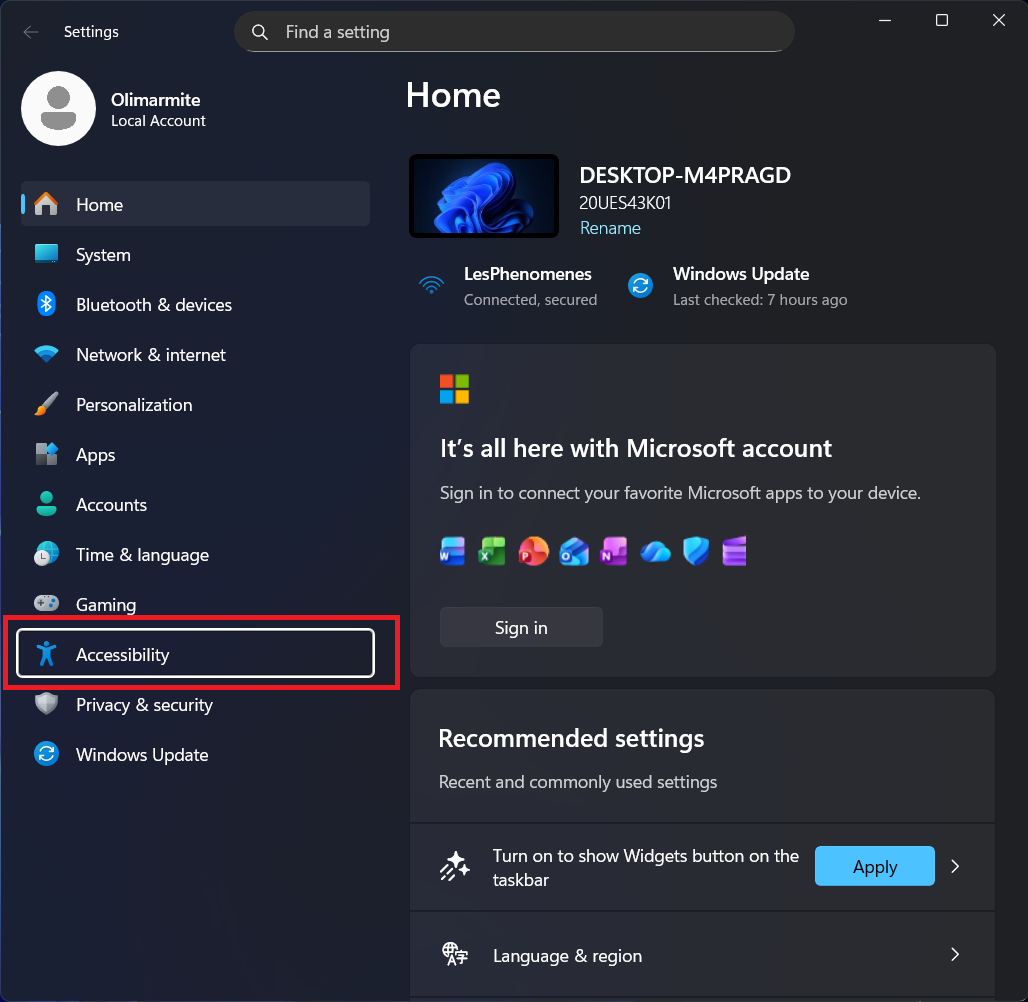
Step 2: Go to "Accessibility"
Press Tab several times until "Home" is highlighted.
Then go down with the keyboard arrows to Accessibility.
Press Enter.
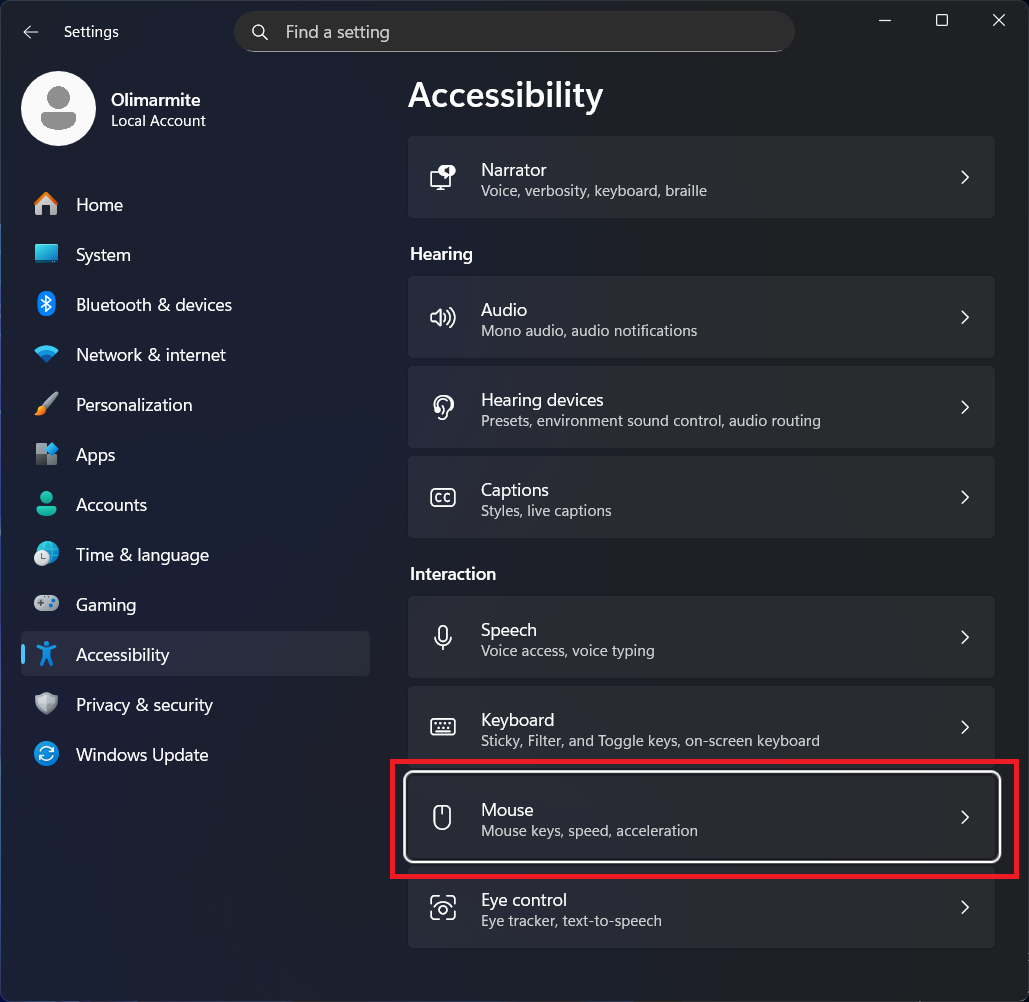
Step 3: Go to "Mouse"
Press Tab to move to the right-hand list.
Go down with the keyboard arrows to Mouse.
Press Enter.
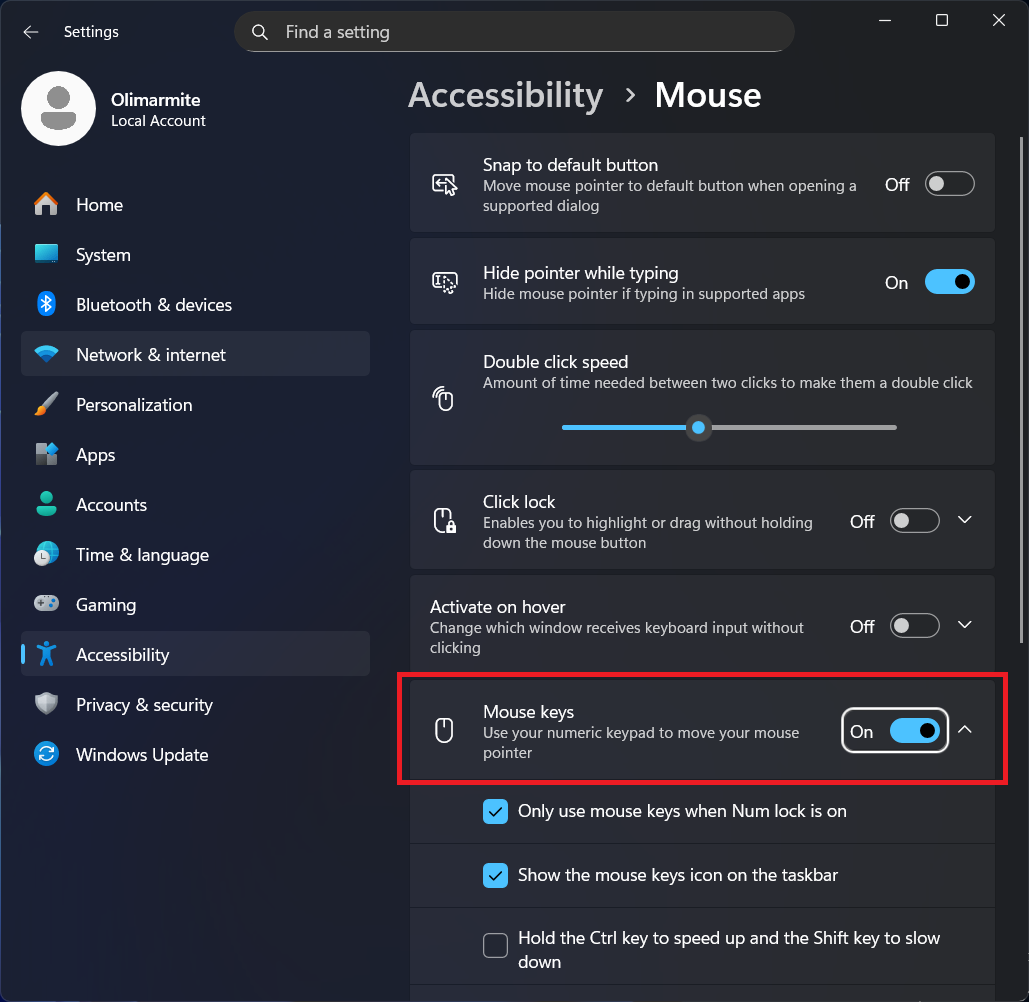
Step 4: Enable "Mouse keys"
Press Tab until you reach the "Mouse keys" button.
Press Space to enable it.
The button turns blue = it's enabled ✓
✅ Done!
The mouse cursor is now visible on your screen.
⚠️ Note: If you unplug a mouse, you will need to repeat this procedure.